Free Pixel Art Generator from Images
Make a bead pattern from an image you love. Adjust the pixels, check your bead counts, and download a PNG or printable PDF.
Make a pattern from your image
- 1
Choose your image
Drop in a JPG, PNG or WebP file up to 10 MB. A pattern appears as soon as the image is loaded. For a busy photo, crop around the subject and simplify the background first. Clear shapes and fewer details usually make stronger pixel art. Cropping and the specialist import options are there when you need them.
- 2
Find the right size and colors
Try a grid width and choose the bead palette you own. Reduce the color count to simplify the result. The preview updates as you adjust settings; you will be asked before new settings replace your manual edits.
- 3
Clean up the pixels
Paint, erase, fill an area or pick a color without leaving the canvas. Selections, layers and symmetry help with larger changes. Undo and redo let you try a change and compare it.
- 4
Check your beads and download
Review the number of beads in each color. Choose your grid, bead shape and color labels, then download PNG or PDF. Sign in when you want to save a cloud project or submit a pattern for review.
See the image and its pixel pattern
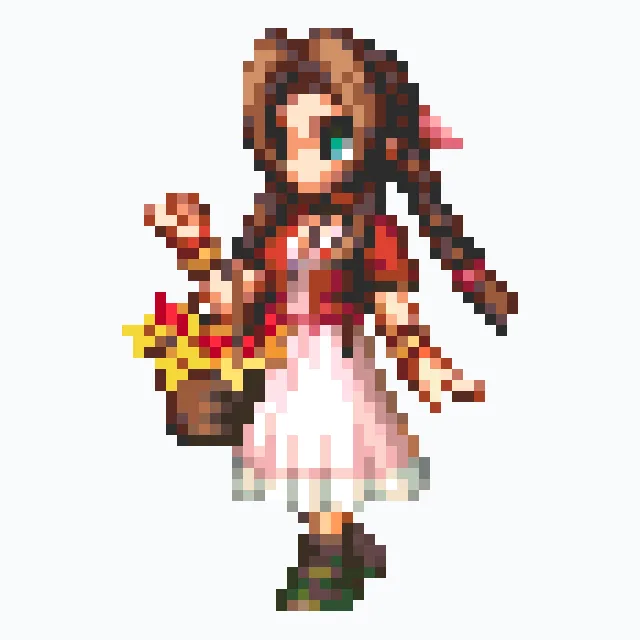
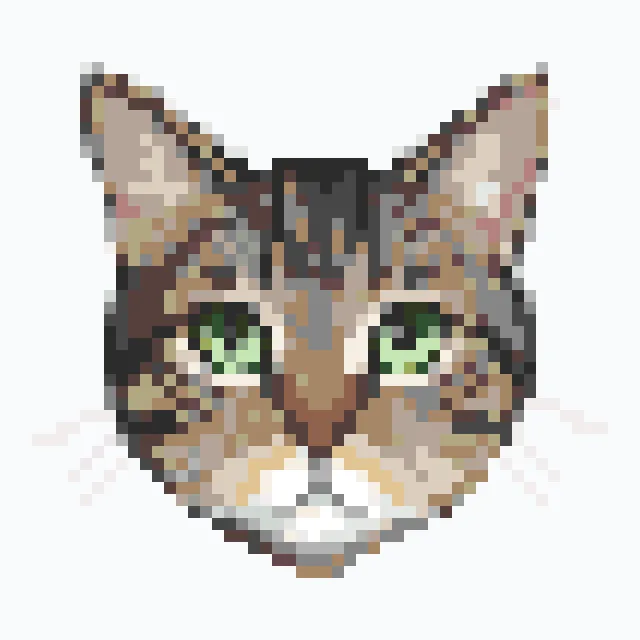
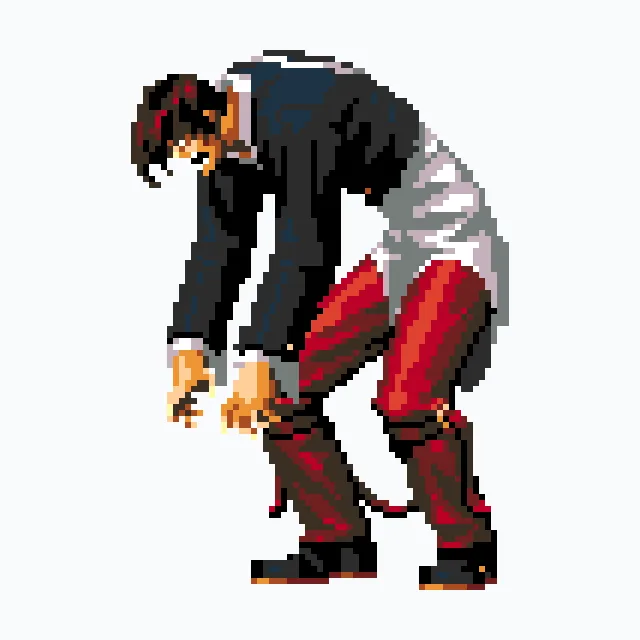
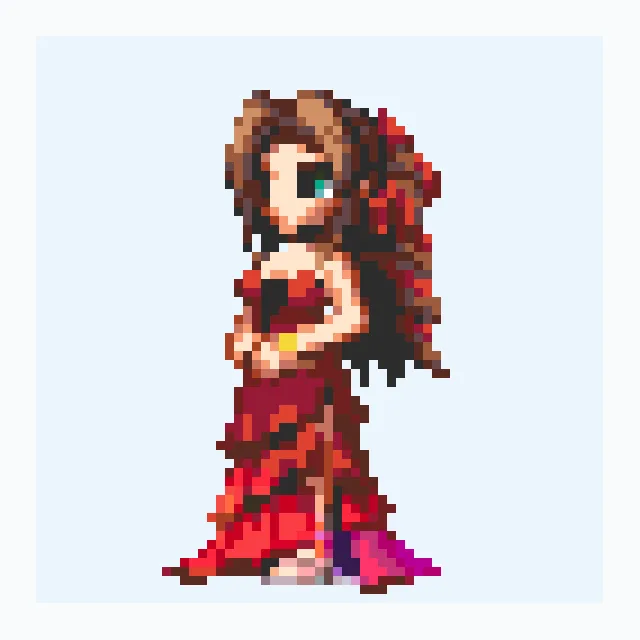
This result was made with the generator. Small details become blocks of color, and the MARD palette determines the shades available.


58 × 58 pixels · MARD 221 · Up to 16 colors · Dithering off
Tools for a bead-ready pattern
Import the source you have
Convert an image, keep the cells of an existing pixel grid, or align a bead chart before import. Each option suits a different kind of source.
Match a real bead palette
Choose supported palettes including Perler, Hama, Artkal and MARD. Set the grid width and color count; five dithering methods are available for textured shading.
Edit directly on the canvas
Use the brush, eraser, fill and color picker. Rectangle and lasso selections let you move or copy a region, with undo and redo for corrections.
Line up the details
Adjust the drawing and base layers, use horizontal or vertical symmetry, and follow the grid guides and coordinates to place pixels.
Know how many beads to prepare
Check the total and the count for each color. Find a palette color, highlight its cells, or replace it across the pattern.
Keep a working copy
Download PNG and PDF patterns with your chosen display settings. Recover a local draft, or sign in to save a cloud project and submit a separate pattern for review.
From pixels to fuse beads
Choose a photo or illustration, set the grid size, and match it to a bead palette. You can also import an existing pixel grid or bead chart. Edit the result on the same canvas, then check the colors and quantities before downloading your pattern. Image conversion happens in your browser; cloud saving and public submissions send the data needed for those actions.
Pixel art builds a picture from individual colored cells. A small grid keeps the main shape; a larger grid gives you more room for a face, lettering or a detailed edge.
Automatic conversion gives you a starting pattern. A few manual changes can make a big difference: tidy an outline, remove isolated pixels or replace a color that is hard to find.
For fuse bead projects, each cell becomes a bead placement. The selected palette supplies the color choices, the counts help you prepare materials, and the exported chart gives you a reference while you work. Check the actual bead colors before committing to the final piece.