
Free browser converter
0px - 0px (0 px)
Real conversion examples
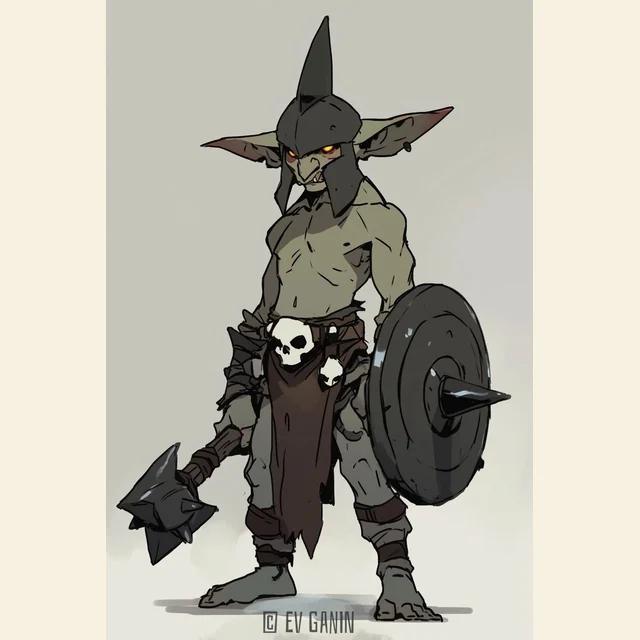
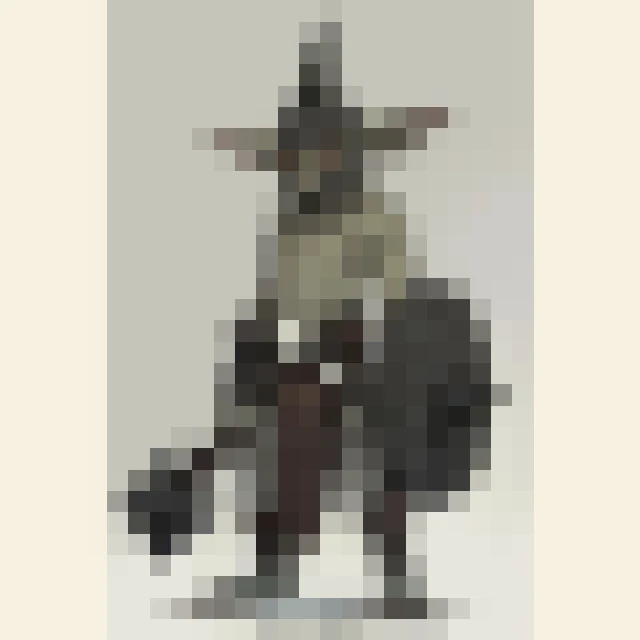
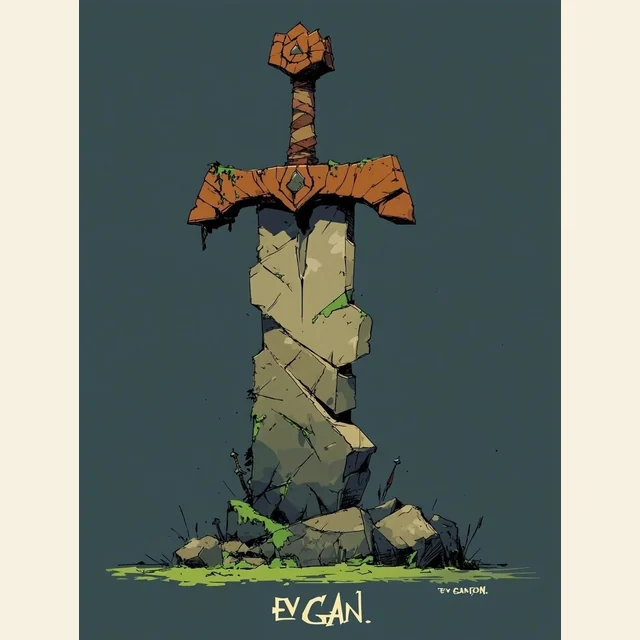
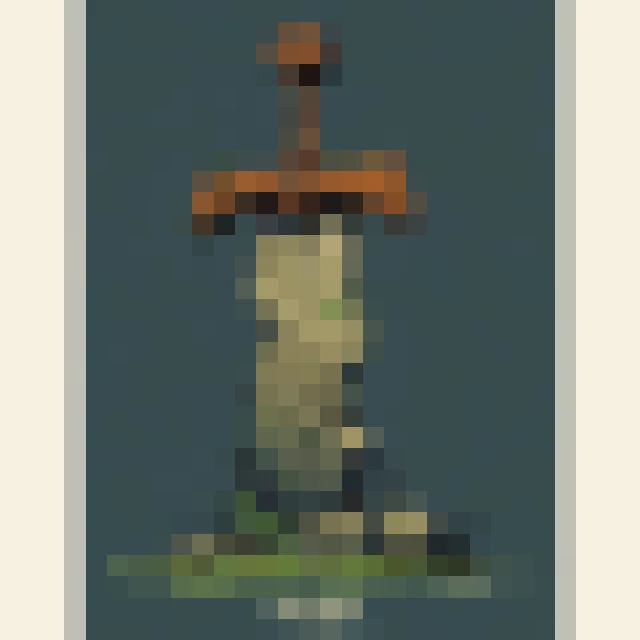
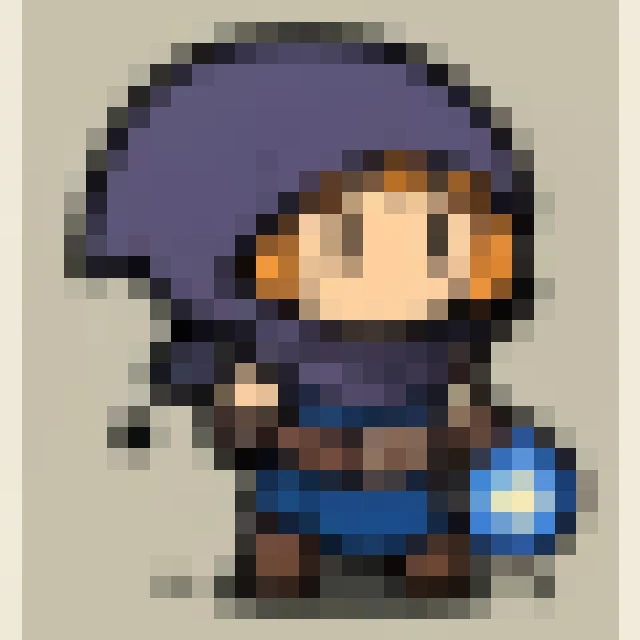
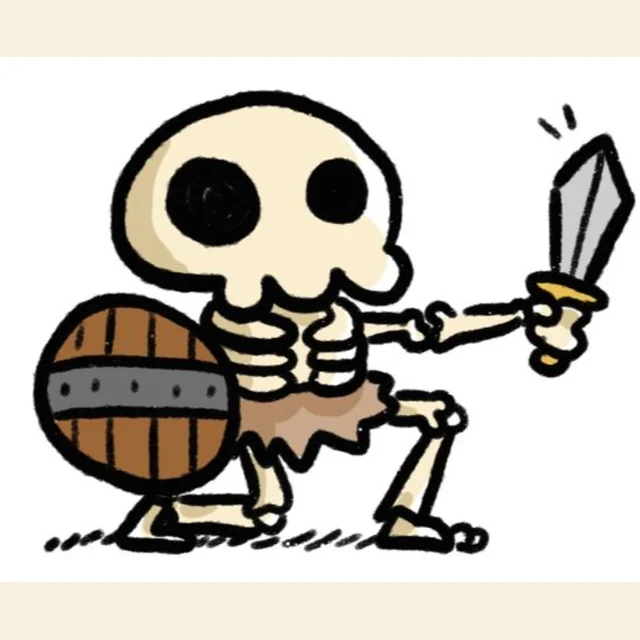
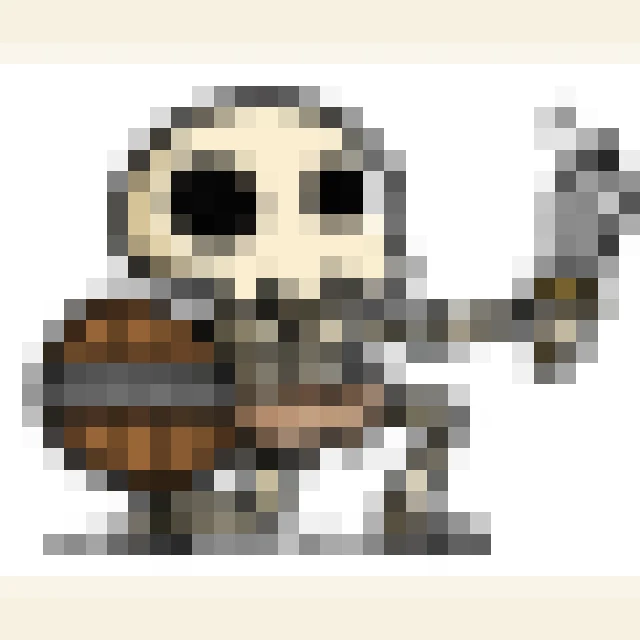
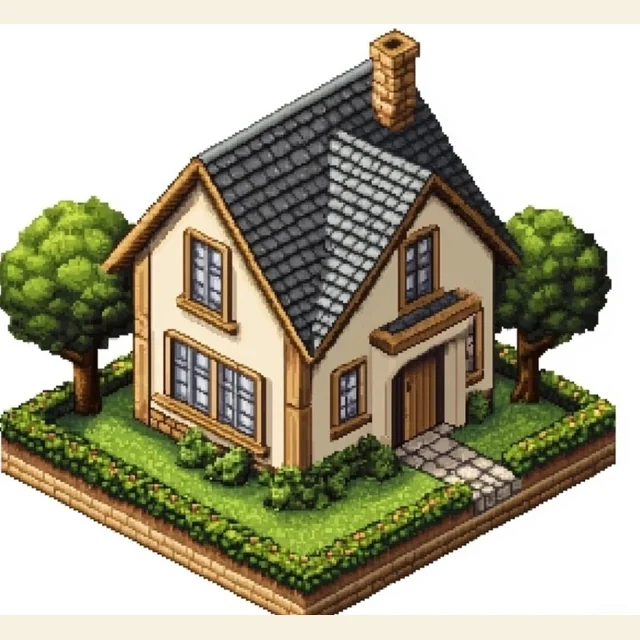
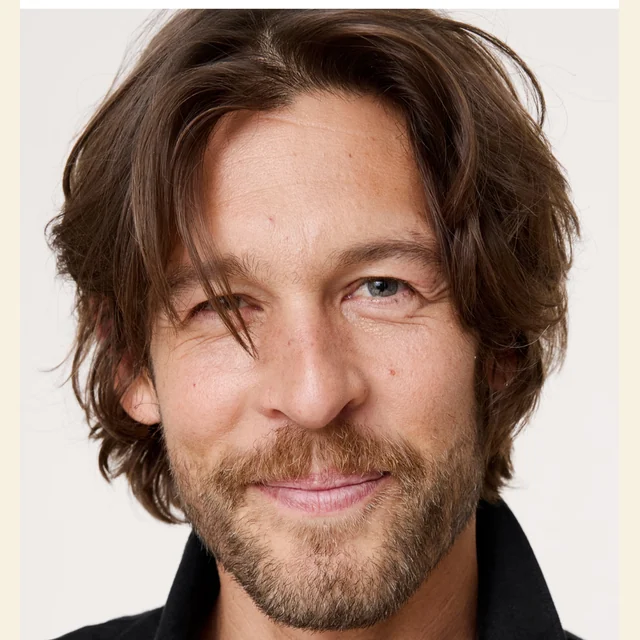
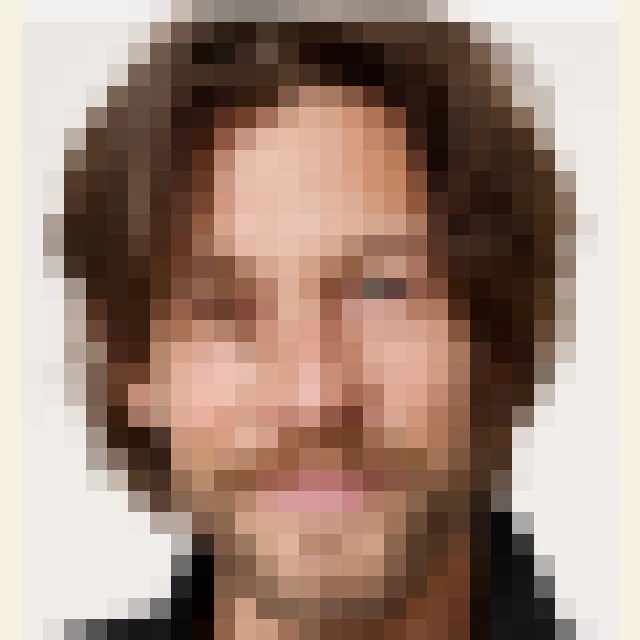
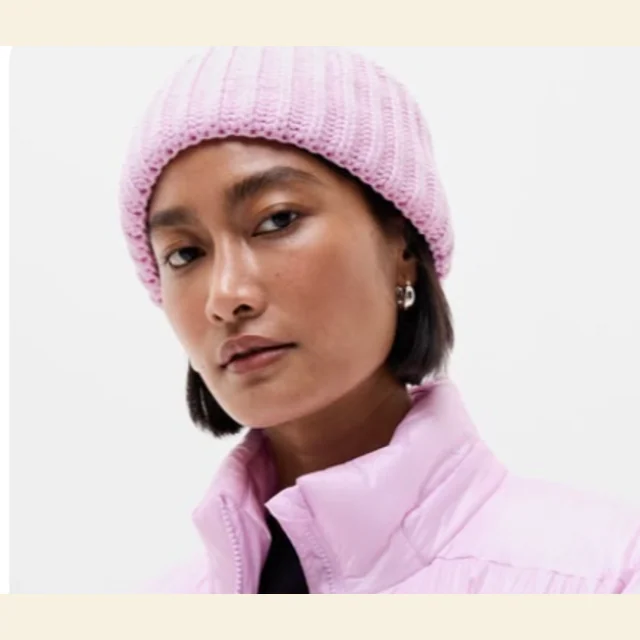
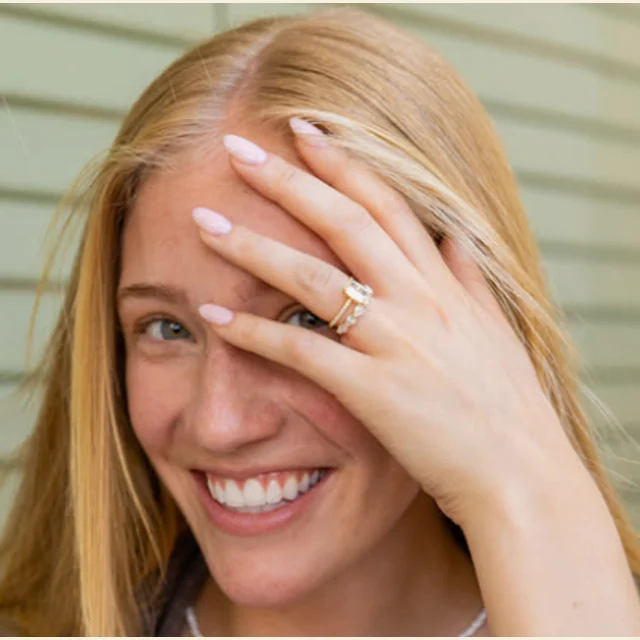
Each pair uses a WebP source from the sample folder and the same block-sampling approach as the converter.
640px WebP · 22px blocks
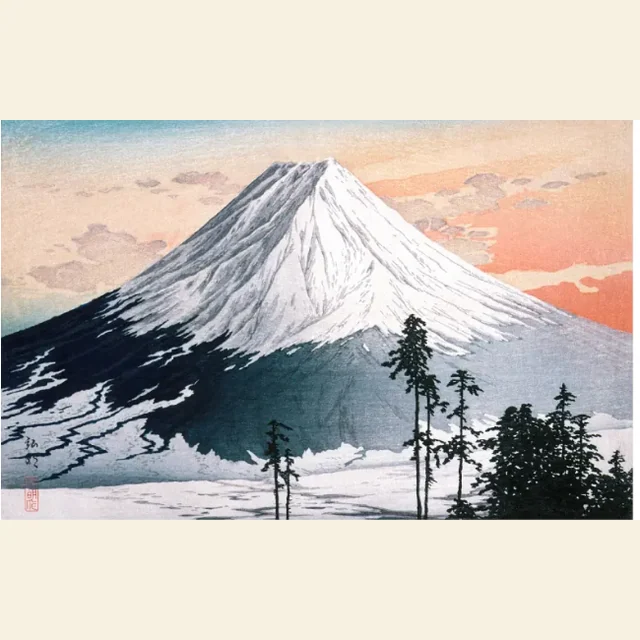
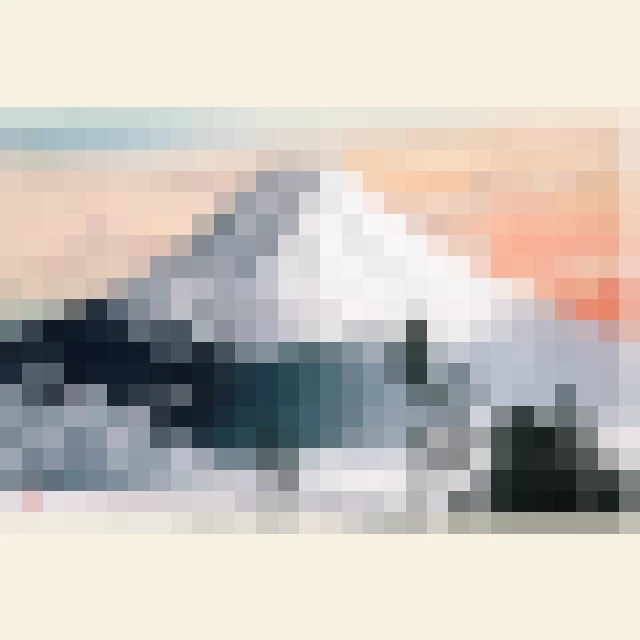

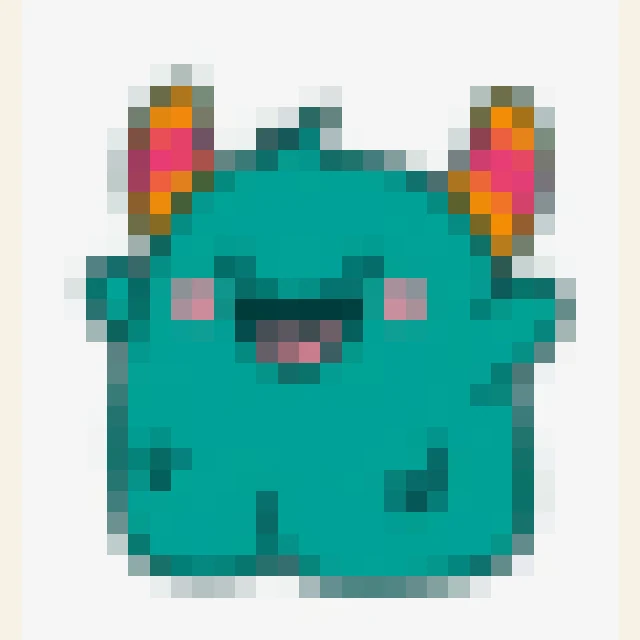
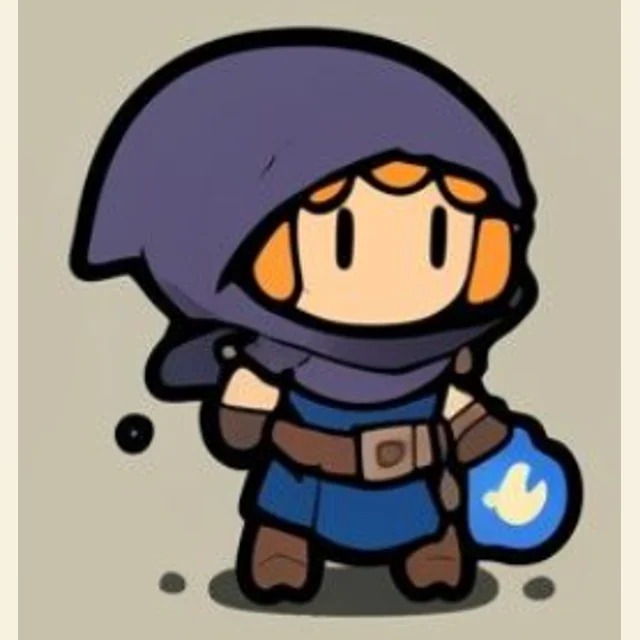
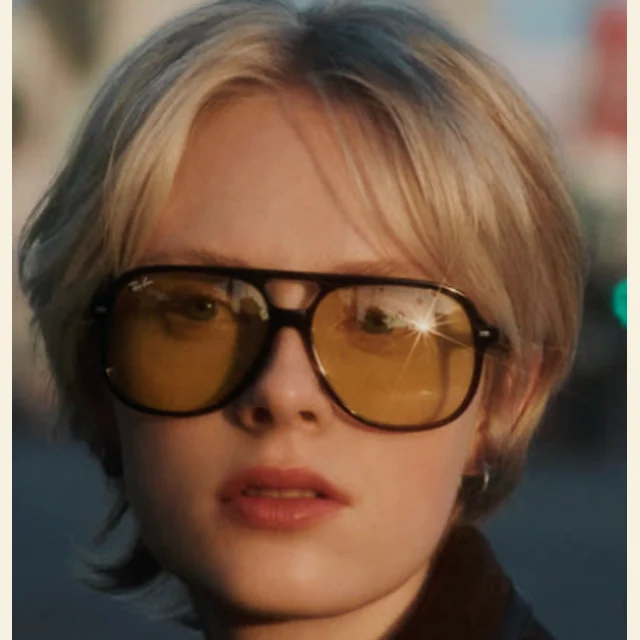
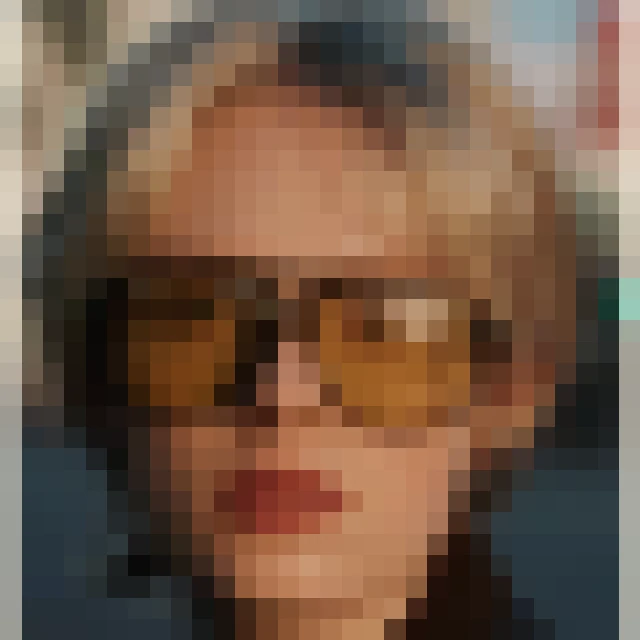
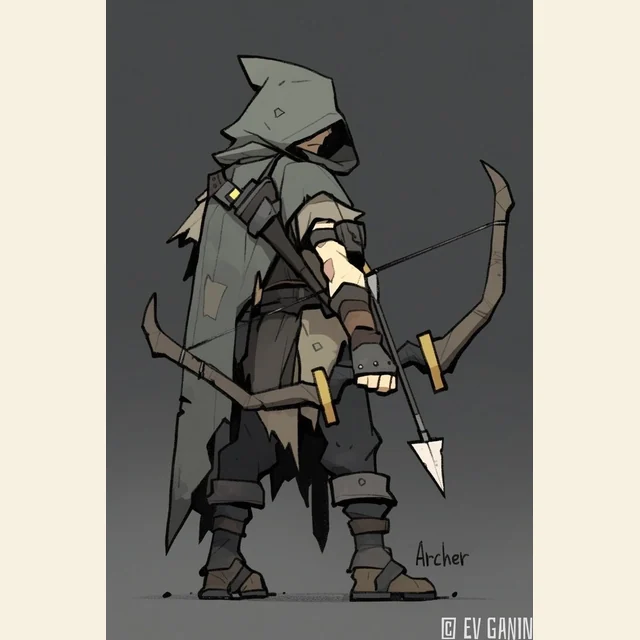
Turn a photo, drawing, screenshot, or texture into crisp pixel art without using AI. Upload an image, choose the pixel size, adjust the colors, apply an optional palette, preview the grid, and download a PNG from your browser.
Use it to make polished pixel images, test game textures, turn real places into scene references, or prepare block-by-block layouts for Minecraft-style builds, LED panels, and shared pixel canvases.
Runs locally in your browser
Pixel size decides how much detail survives. Smaller blocks keep more of the source image; larger blocks create a stronger retro look and make the final image easier to copy or edit by hand.
Use original colors for a quick preview, or map the image to Pico-8, Lost Century, Game Boy, Sunset 8, Hollow, and custom palettes. Palette import is useful when the final style must match a game, canvas, or asset pack.
Small PNG keeps the exact pixel grid for sprites and icons. Large PNG scales the same grid up for review, moodboards, reference sheets, or manual rebuilding in another editor.
Common uses
The same source image can become several different outputs: an avatar needs a readable silhouette, a texture needs restrained color, a scene study needs atmosphere, and a block or canvas reference needs an accurate grid. Choose the purpose first, then tune pixel size, palette, grid, and download size.
Use a portrait, pet photo, icon, or illustration as a base, then adjust pixel size until the silhouette still reads. This is the fastest route when you want a clean pixel-art image before polishing it in an editor.
Turn stone, fabric, sky, foliage, or other real-world material photos into low-resolution texture references. Tiled preview and palette discipline matter because game assets need repeatable shapes and limited colors.
Convert landmarks, rooms, landscapes, and street photos into scene studies for pixel-art backgrounds. Small palettes such as Pico-8 help you test whether the place still feels recognizable under strict color limits.
Use the grid and large PNG when the output is a plan for Minecraft-style blocks, LED panels, or collaborative pixel canvases. In those cases the pixel positions are as important as the image mood.
image to pixel art
Pick the purpose first. Art and avatars can keep more detail; textures, tiles, and block references usually need stronger simplification.
Set pixel size until the main shape reads at a glance. If the result looks noisy, increase pixel size. If the subject disappears, decrease it.
Tune brightness, contrast, and saturation before applying a palette. Palette mapping works better when the source image already has readable light and dark areas.
Apply a palette only when you need a limited-color style. Leave it off for source-color previews, quick drafts, or images you plan to repaint manually.
Download small PNG for actual pixel dimensions. Download large PNG when you need a shareable preview, grid reference, or step-by-step rebuilding guide.
An image to pixel art converter turns a normal picture into a grid of sharp color blocks. This tool does not generate a new image with AI; it reduces detail, redraws hard pixel edges, and optionally remaps colors to a chosen palette. PNG, JPG, WebP, GIF, and SVG uploads are supported. The generated image is yours to use for drafts, game assets, social posts, or commercial work as long as you have the right to use the original input image.
Guide
A useful image to pixel art conversion is not just a blocky resize. It is a decision about which details should survive when resolution and colors are limited. Pixel size controls the shape, palette controls the style, and grid plus download size decide whether the result is ready for editing, sharing, or rebuilding cell by cell.
For art and avatars, start with the subject. Keep the pixel size low enough that eyes, outline, or icon shape still survive. For textures and tiles, start with repetition and color restraint: a small palette often gives a better game-ready reference than a detailed photo with hundreds of colors.
For places and settings, choose the mood before the export. A Pico-8-style palette, Game Boy palette, or a palette imported from Lospec can quickly show whether a landscape, room, or landmark still works as pixel art. The grid is optional: keep it off for clean digital art, and turn it on when the image needs to be copied into another system.
Yes. You can upload an image, change the settings, preview the result, and download PNG files without signing in.
No. It uses browser image processing to pixelate and remap the image. That makes the selected pixel size predictable instead of producing an AI interpretation of the picture.
Clear subjects, strong silhouettes, icons, portraits, product shots, simple landscapes, and texture photos usually work best. Very busy photos often need a larger pixel size or higher contrast.
Open the Palette panel, turn on Apply palette, and choose a palette. You can also import a Lospec or PixilArt palette URL, paste HEX colors, or extract colors from the current image.
Use the grid when you need a reference for rebuilding the image in another editor, a block layout, a LED matrix, or a shared pixel canvas. Leave it off for clean sprites, avatars, and final PNG artwork.
Small PNG downloads the true pixel-art dimensions, such as 64 x 64 pixels. Large PNG scales that same result up so it is easier to view, share, or use as a reference.
Upload an image, choose a purpose, tune the pixel size and palette, then download a clean pixel-art PNG directly from your browser.
Start image to pixel art